Free browser demo
Image to Video AI Free
A workflow you can repeat, not a one-off lucky render.
A good image-to-video result is usually the second or third attempt. This page gives you a repeatable loop: prepare the still, describe one motion, review specific frames, then change one variable. The free demo is enough to learn the loop.
No account
The demo opens without sign-up.
No credits
A free run does not touch a credit balance.
Download
Keep the clip when the queue finishes.
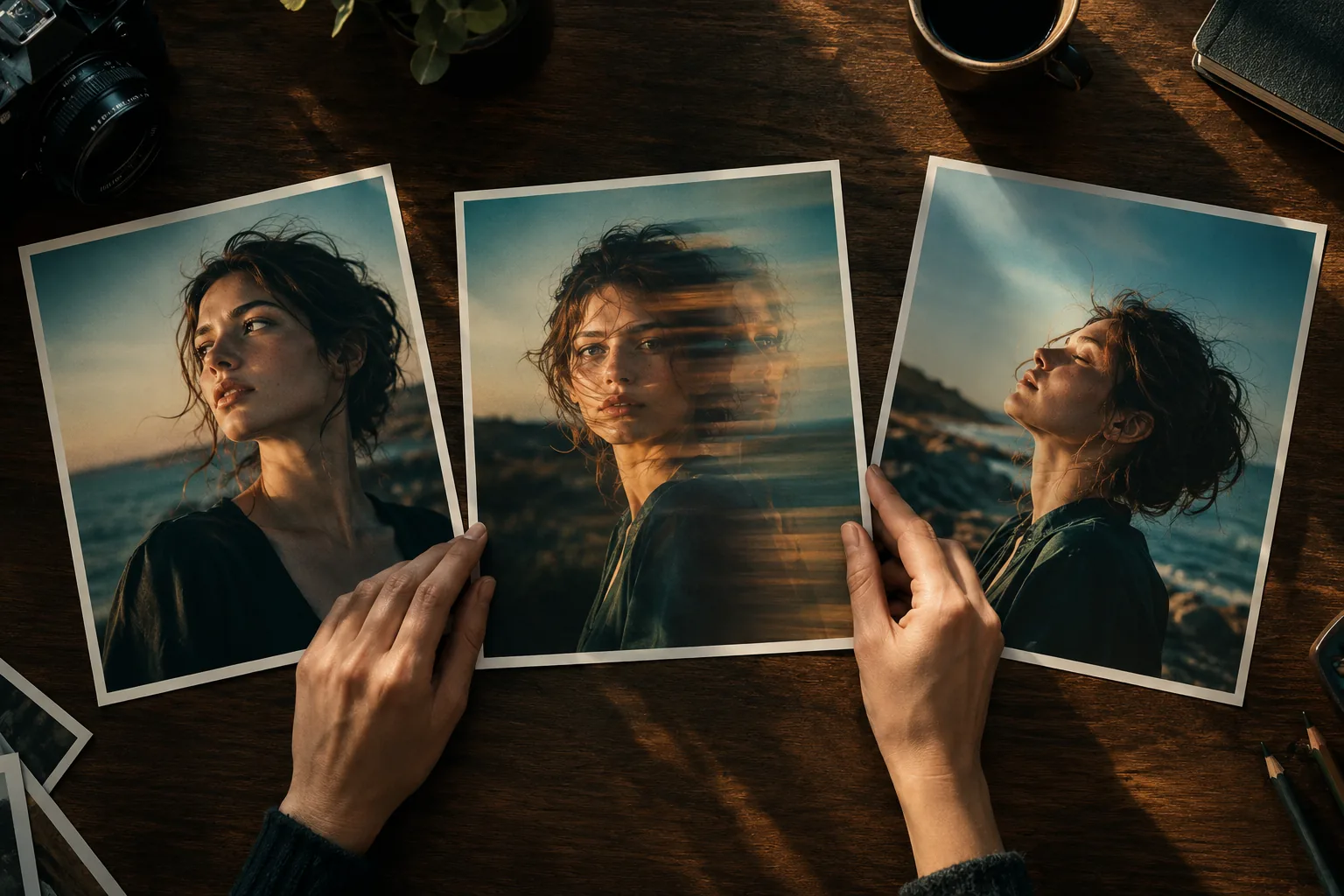
Try it with your own photo
Upload one image, keep the first motion small, and review the whole clip before downloading.
Leave this blank if you want the default safe motion prompt.
161/400No Videos Yet
Upload an image and run the flow. When the tested public Space finishes, your animated video will appear here.
How the free demo works
Upload one still image, optionally describe the motion, and start the job. The demo sends the file to temporary public storage and runs a tested public image-to-video model. The result appears in the same panel; download it when the queue finishes.
- 1Choose one clear photo: PNG, JPG, WEBP or GIF, up to 10 MB.
- 2Describe one small movement, or leave the prompt empty for the default gentle motion.
- 3Wait for the result, play the whole clip, then download the video.
A realistic image-to-video pipeline
Start with a still that is already sharp and well lit. If you generated it with an image model, inspect the hands, eyes and text before animating. Animation amplifies existing defects; it does not clean them up.
Write one motion instruction and keep the camera language separate. After the first result, change only the motion or only the photo. That is the difference between a test and a slot machine.
- Inspect the still at 100% before uploading.
- Separate subject motion from camera motion.
- Change one variable per attempt.
Review the frames, not just the thumbnail
Scrub through the clip and pause at the moments with the most movement. Check the eyes, fingers, hairline, clothing edges and background lines. A clip can look convincing in motion and fall apart when paused.
If the face changes, reduce the motion or replace the photo. If the background warps, remove the camera move. If the clip is too short, that is a model or plan limitation, not a prompt problem.
- Pause on the fastest-moving frame.
- Compare the first and last frame with the source.
- Write down which change fixed the issue.
Motion recipes you can paste
Start with one movement. Change one instruction at a time so you can tell what improved the result.
Still portrait
A subtle blink and gentle breathing. Keep the camera fixed, preserve the face and lighting, and avoid new objects, speech or large gestures.
Generated illustration
The character’s hair and clothing move in a soft breeze while the camera stays still. Keep the original line style, palette and silhouette. No new characters or text.
Product shot
A slow rotation of the product on a plain background. Keep the material, color and label shape consistent. Studio lighting, no hands or background changes.
Travel photo
Clouds move slowly and water ripples. The camera drifts slightly to the right. Keep the horizon and architecture stable. No people or vehicles enter the frame.
Before you upload
The free demo is a public route. Your image goes to temporary public storage before it reaches the upstream model, so treat the upload as public. The signed-in generators are a separate route and require an account.
- Use only photos you have the right to share.
- Do not upload private family photos, IDs, or images of people who have not agreed.
- Keep the original file; the demo does not promise permanent storage.
What this page does not promise
Free access is best effort. Public GPU queues can be busy, paused, or out of quota, and a queue error is not a generated video.
- No guaranteed resolution, frame rate, or duration.
- No guarantee that a face, pet, or costume stays identical in every frame.
- No lip sync, accurate lettering, or editable project file.
- No refund of time spent waiting in a public queue.
Questions people ask before trying
Can I upload an AI-generated image?
Yes. Check the hands, eyes and text first. Generated stills often contain small defects that become obvious when the image moves.
What resolution should I upload?
Use a clear image under the demo’s 10 MB limit. A huge file is not automatically better; sharpness and a clean subject matter more.
Can I animate a screenshot?
You can try, but flat UI edges and small text usually warp. A photo is a better first test.
Do I need a prompt?
No. The demo uses a default gentle motion when the prompt is empty. A short prompt gives you more control over what moves.
Try one photo before you pay for anything
The demo costs no credits and needs no account. When you need model choice, a vertical frame, or an HD export, continue to the signed-in tools.
Credit packs are one-time purchases. Monthly plans are optional and can be cancelled from billing settings.
Other free photo and video tools
- Photo to Video AI FreeTurn a photo into a short video with a free AI demo. Choose the right photo, describe one motion, review the clip, and know when an HD render is worth it.
- Animate a Photo Online FreeAnimate a photo online free in your browser. Compare desktop and phone uploads, check public queue limits, and download a reviewed clip without an app.
- Make a Picture Move With AIMake a picture move with AI using one clear camera move. Compare push-in, drift, parallax and loop recipes, then try the free demo on your own still image.
- AI Image Generator OnlineGenerate an image online with AI, then animate it. See how to write a first-frame prompt, what the paid image tool costs, and how to test the animation free.