Try the workflow from this guide
Animate Image AI for no-sign-up image-to-video tests
Upload one image, add an optional motion prompt, and use a no-sign-up animate image AI workflow powered by tested public Hugging Face Spaces.
Leave this blank if you want the default safe motion prompt.
0/400No Videos Yet
Upload an image and run the flow. When the tested public Space finishes, your animated video will appear here.
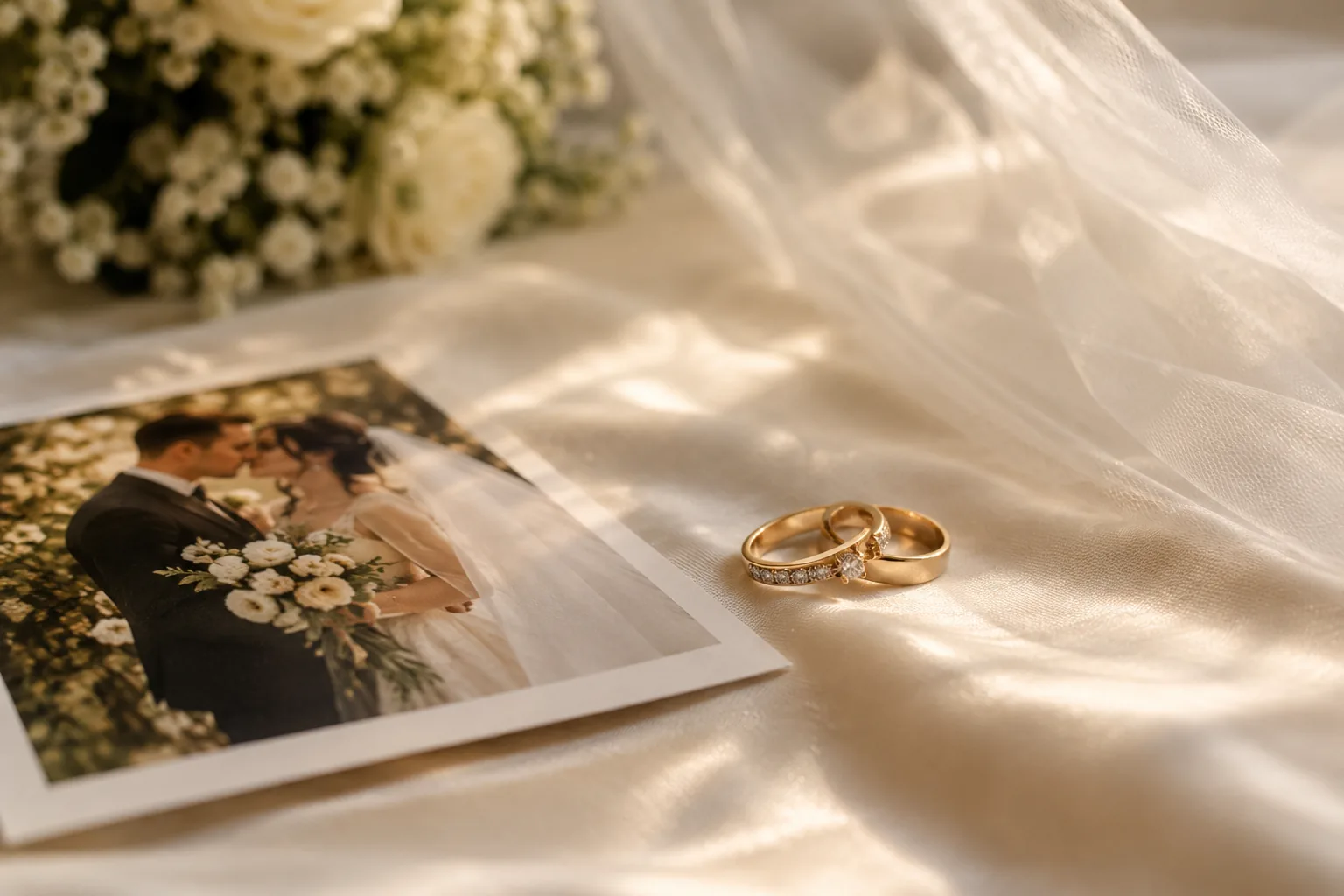
Short answer: start with a slow camera push-in and keep the couple still. Do not ask for a kiss, a walk or a big gesture in the first attempt. Review both faces, joined hands, rings, the bouquet and the dress edge before you share the clip. A quiet, believable movement is usually more valuable than a dramatic one that changes the people.
Wedding photographs are full of details that matter: two recognizable faces, a dress with a specific edge, a bouquet, rings, joined hands and often a crowd in the background. A small camera move asks the model to invent less than a kiss or a dance. That is why it is the safer first step.
The restrained workflow
- Choose one photograph with both faces clearly visible.
- Crop to the couple and leave room around the heads and hands.
- Ask for a very slow camera push-in.
- Keep the couple still, with only slight breathing.
- Review faces, hands, rings, bouquet and background.
- If the clip holds, try a slightly stronger move in a new run.
This workflow is intentionally conservative. You can always generate a more expressive version later. You cannot undo a clip that changes the couple’s faces after you have shared it.
Preparing the photo
Use a photo where both faces are large enough to inspect. A wide crowd scene is a difficult first test. If the couple is small in the frame, crop to them, but keep the bouquet and hands in the composition.
Check for cropped fingers, a veil cutting across a face, a bouquet hiding a hand or a guest standing behind the couple. Those are the places where the model may invent or merge details.
If the photo is private, do not use the free public demo. The free route stores the upload in temporary public storage. Use the signed-in tool and make sure everyone shown has agreed to the use.
Camera move vs couple movement
A slow push-in adds intimacy without changing the pose. A lateral drift can reveal the room, but it may bend architectural lines. A zoom-out can show the dress and the setting, but it may also reveal a background the model does not understand.
For the first test, choose one camera move and keep the couple still. If the faces hold, try a slight breathing motion in a separate run. Do not combine a kiss, a walk, a head turn and a camera move. Each one adds a new failure surface.
Reviewing two faces and hands
Pause on each person’s face at the beginning, middle and end. Check the eyes, mouth, jawline and hairline. Then look at the hands: joined hands, rings and fingers are common failure points.
Follow the bouquet stems. They are thin, overlapping and easy to merge with the dress. Check the dress edge for transparency and lace details. Finally, look at the background for bending lines or guests who appear and disappear.
If one face changes, reduce the movement or replace the photo. Do not try to fix a face with a longer prompt. The source and the motion are the main variables.
Text, music and invitations
Do not ask the video model to write names, dates or venue details. Generated lettering is unreliable, and wedding text must be exact. Add names, dates and music in a dedicated editor after the clip is exported.
If the clip is going into an invitation, keep the animation short and leave space for the text. A clean, quiet clip is easier to integrate than a busy one with moving guests and a rotating camera.
Privacy and consent
A wedding photo may include guests who did not agree to appear in an AI-generated video. Ask before publishing. Keep the original file and a private version of the clip. If the couple wants to share it, let them choose the platform and the caption.
Do not upload a client’s wedding photo to a free public queue. Use a route that matches the sensitivity of the material, and check the service’s privacy policy before you upload.
A simple rule helps: if you would not send the original photo in a group chat, do not put it in a public animation queue. The fact that the output is a short video does not make the source less sensitive.
What a good result looks like
A good wedding animation is subtle. The couple still looks like themselves. The hands stay joined. The dress and bouquet keep their shape. The camera moves enough to feel alive, but not enough to distract from the people.
If the result looks like a different couple, a different dress or a different venue, reject it. A beautiful clip that changes the subject is not a successful wedding animation.
FAQ
Can the AI make the couple kiss?
A prompt can request it, but faces and hands may change substantially. For a keepsake, a slow camera move with both people mostly still is safer.
What should I check in a wedding clip?
Both faces, joined hands, rings, bouquet stems, dress edges and background guests. Pause on the most active frame and inspect each one.
Can I add names and dates?
Do not rely on the video model for lettering. Add names, dates and venue text in a dedicated editor after the clip is generated.
Is the free demo private enough for wedding photos?
No. The free demo uses public temporary storage. Use the signed-in route for private photos and make sure everyone shown has agreed to the use.
Try a quiet first pass
The wedding photo preset starts with a slow camera move and a still couple. Review the result before sharing, and use the free no-login demo only for a photo you are comfortable making public. For a private project, compare the signed-in video tool and the credit packs.
Keep reading
Best AI Image Animation Models in 2026: WaveSpeed, Fal and Kie
Compare WaveSpeed, Fal, Replicate and Kie for image animation in 2026: model choices, rough pricing, queue behavior, and which route fits a first test.
AI Motion Prompt Guide: 40 Camera and Subject Moves
A practical AI motion prompt guide for image-to-video: camera moves, subject moves, negative instructions, and recipes that survive a full-frame review.
How to Animate an Old Family Photo Without Losing the Face
Animate an old family photo with AI while keeping the face recognizable. Prepare the scan, choose one motion, and review grain, hands and the background.
Test one photo before you choose a plan
The no-login demo costs no credits. Use it to check the photo, the crop and one motion. Move to the signed-in tools only when you need a specific model, a vertical frame or an HD export.