Try the workflow from this guide
Animate Image AI for no-sign-up image-to-video tests
Upload one image, add an optional motion prompt, and use a no-sign-up animate image AI workflow powered by tested public Hugging Face Spaces.
Leave this blank if you want the default safe motion prompt.
0/400No Videos Yet
Upload an image and run the flow. When the tested public Space finishes, your animated video will appear here.
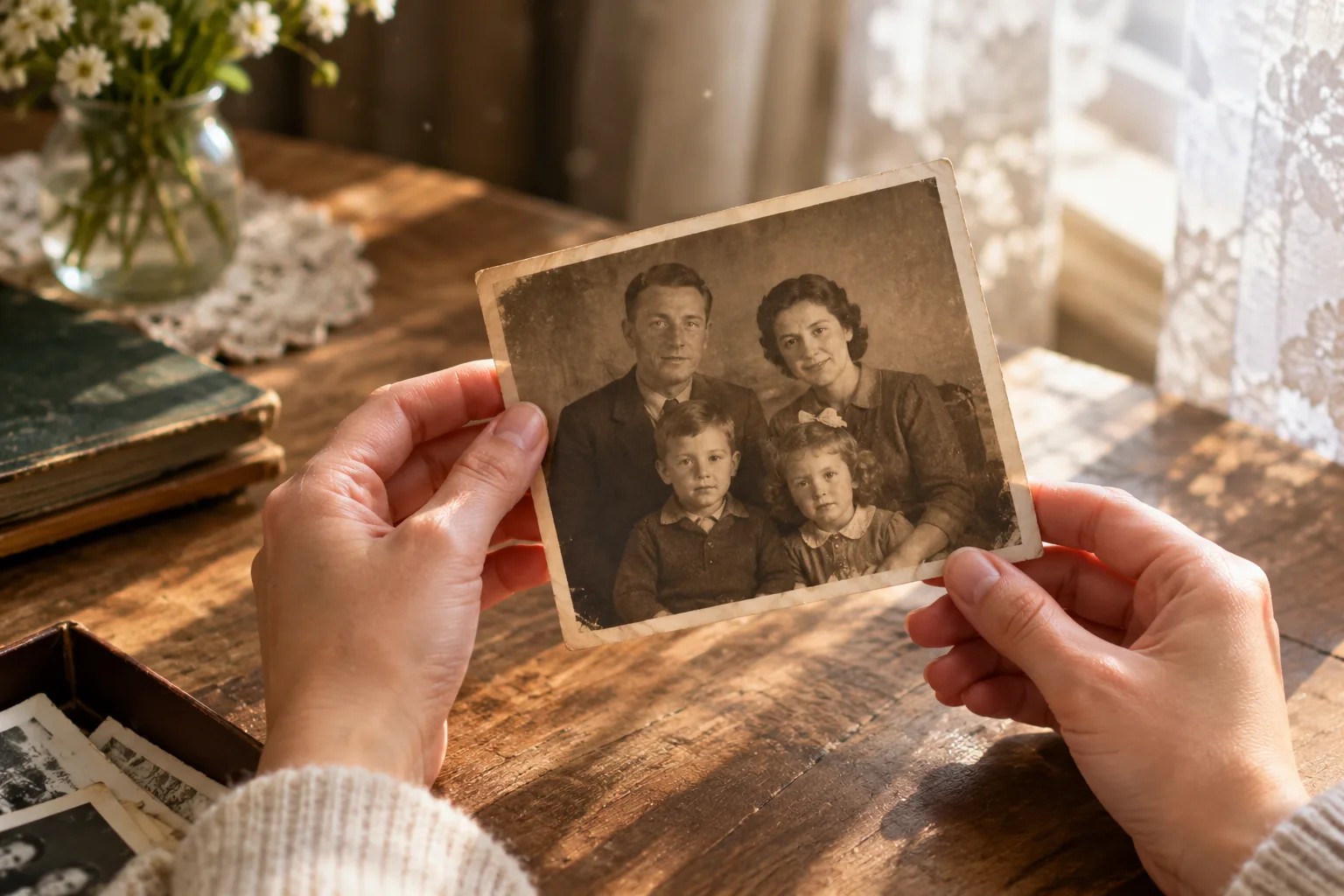
Short answer: scan the original at the highest practical resolution, clean only the distractions that block the face, and ask for one small movement such as a blink or a slow camera push-in. Keep the sepia tone and grain unless you deliberately want a colorized interpretation. Review the eyes, mouth, hands and background at several points before you share the clip.
Old photographs are not just low-resolution images. They carry scratches, soft focus, uneven exposure and a face that may be small in the frame. Those conditions make identity drift more likely. The goal is not to “make the past move” at any cost; it is to create a short, respectful animation that still looks like the person you remember.
Start with the scan, not the prompt
A phone photo of a printed photograph is usually worse than a flat scan. Glare, perspective and camera shake remove detail before the animation model sees anything. If you have the negative or a high-resolution scan, use it. If you only have a print, photograph it straight on, in even light, with the print filling the frame.
Check the scan at 100%. The eyes and mouth should be visible, and the face should be large enough to inspect. If the face is smaller than a thumbnail, the model has very little evidence to preserve. Crop to the person or the small group you want to animate, but leave some room around the head and shoulders.
Do not upscale aggressively before animating. A sharpened, AI-upscaled face can look more detailed while containing invented features. A modest upscale is fine; a heavy “remaster” may change the person before the video model starts.
What to fix before animating
Fix the problems that make the face hard to read:
- straighten a crooked scan;
- remove dust that covers an eye or the mouth;
- even out a harsh shadow across the face;
- crop out a distracting border;
- keep the original tone and grain.
Leave the scratches and softness that give the photograph its character. You are preparing a source, not restoring a museum archive. If you want a restored still, keep a separate copy and compare it with the original before using it for animation.
The safest first motion
Ask for a blink and a very slight breathing motion. Keep the camera fixed. Do not ask the person to turn, smile broadly, wave or speak in the first attempt. Those movements ask the model to invent more of the face and body.
If the blink works, try a very slow camera push-in in a separate run. The push-in adds life without changing the pose. If the face drifts during the push-in, return to the fixed-camera version and keep it.
The prompt should include the preservation instructions explicitly: keep the original grain, tone and composition; do not colorize; do not invent facial details; keep the same number of people. A short list is enough.
Review the face, hands and grain
Pause at the beginning, middle and end. Check the eyes first, then the mouth, then the jawline. Old photos often have soft edges around the mouth; that is where the model may invent a different expression.
Look at the hands if they are visible. A hand resting on a shoulder can merge with fabric or lose a finger. Check the background for bending lines, especially if the photo has a doorway, table edge or framed picture.
Finally, compare the grain. A model may smooth the entire image into a modern digital look. If the original texture matters to the family, reject the clip and try a smaller motion or a different source scan.
Color, restoration and honesty
Colorizing an old photo is an interpretation, not a recovery. The model does not know the person’s eye color or the fabric’s original shade. If you colorize, label the result as an interpretation and keep the original black-and-white or sepia version.
The same applies to “restoration”. Removing scratches can also remove wrinkles, freckles and the shape of a nose. A family member may notice the difference immediately. Keep the original file, make a separate restored copy, and compare both before deciding which one to animate.
Privacy and family consent
An old family photo may show people who are still alive, or people whose relatives are alive. Ask before publishing an animation, especially on social media. Do not upload a private family archive to a free public demo; use a signed-in route when the material is sensitive.
This is not only a legal question. A moving image of a deceased relative can be emotionally powerful. Give the family a chance to see it privately before it becomes public content.
A repeatable workflow
- Scan at the highest practical resolution.
- Crop to the person and leave room around the head.
- Fix only the distractions that block the face.
- Ask for one blink with a fixed camera.
- Review the eyes, mouth, hands and grain.
- If it works, try a slow push-in in a new run.
- Keep the original and label any colorized or restored version.
This workflow is slower than pressing “animate” on the first file you find. It is also much more likely to produce something the family will want to keep.
FAQ
Should I restore the old photo before animating it?
A light cleanup helps, but heavy restoration can change the face. Keep the original scan and compare the restored still with the final clip.
Can the animation colorize an old photo?
A prompt can ask for color, but the result may invent skin tones and clothing colors. For a family archive, it is safer to preserve the original tone.
Why do the eyes or mouth change?
The model is predicting new frames from a low-detail source. Small faces, scratches and blur increase identity drift. Use a larger, sharper scan when possible.
Is the free demo suitable for a private family photo?
No. The free demo uses temporary public storage. Use the signed-in tool for private family material, and get consent from the people shown.
Try a careful first pass
The free animation demo is a reasonable place to test a non-private scan. Start with one blink, keep the camera fixed, and review the whole clip. If the face holds, the old photo workflow is the next step; if you need a private upload and a specific model, compare the credit packs.
Keep reading
Best AI Image Animation Models in 2026: WaveSpeed, Fal and Kie
Compare WaveSpeed, Fal, Replicate and Kie for image animation in 2026: model choices, rough pricing, queue behavior, and which route fits a first test.
AI Motion Prompt Guide: 40 Camera and Subject Moves
A practical AI motion prompt guide for image-to-video: camera moves, subject moves, negative instructions, and recipes that survive a full-frame review.
How to Animate a Pet Portrait Without Extra Ears or Paws
Animate a pet portrait with AI without extra ears, shifted markings or strange paws. Use one blink, a fixed camera and a deliberate frame-by-frame review.
Test one photo before you choose a plan
The no-login demo costs no credits. Use it to check the photo, the crop and one motion. Move to the signed-in tools only when you need a specific model, a vertical frame or an HD export.