Try the workflow from this guide
Animate Image AI for no-sign-up image-to-video tests
Upload one image, add an optional motion prompt, and use a no-sign-up animate image AI workflow powered by tested public Hugging Face Spaces.
Leave this blank if you want the default safe motion prompt.
0/400No Videos Yet
Upload an image and run the flow. When the tested public Space finishes, your animated video will appear here.
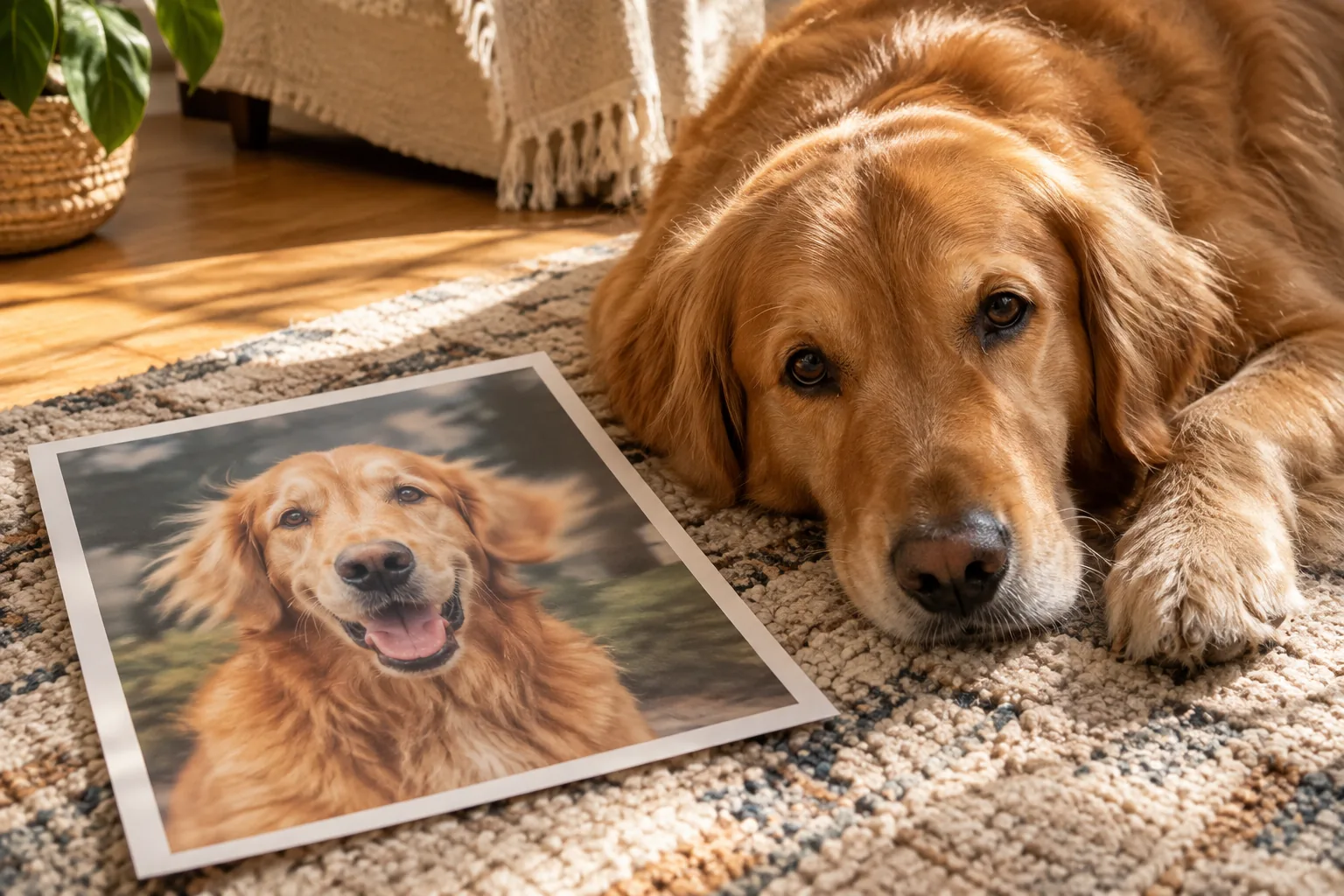
Short answer: use one clear pet portrait, ask for a single blink with a fixed camera, and keep the body still. Review the ears, muzzle, paws and fur markings at several points before downloading. If the first clip adds an ear or moves a marking, reduce the motion or replace the photo instead of adding more prompt instructions.
Pet portraits are deceptively difficult. A human viewer knows exactly how many ears a dog should have, where the nose ends and how the fur pattern should sit. The model does not have that embodied knowledge. It predicts pixels, and a small movement can turn a familiar face into a different animal.
One pet, one blink
The safest first motion is a blink. The eyes are usually visible, the movement is local, and the rest of the portrait can stay still. Keep the camera fixed and ask the model to preserve the ears, fur markings, muzzle and body position.
Do not start with a head turn, a bark, a run or a “happy dance”. Those movements require the model to invent a mouth, a neck, legs and a background. A failure will not tell you whether the model is bad or the request was too large.
If the blink works, try a very small head tilt in a separate run. Compare the two clips. The simpler version is often the one that still looks like the pet.
A photo checklist
Choose a photo with:
- both eyes visible;
- the full outline of the ears;
- the muzzle not covered by a toy or a hand;
- a clear separation between the pet and the background;
- even light and visible fur texture.
A cropped ear, a paw over the nose or a dark face against a dark sofa gives the model less to work with. A plain background is not required, but it makes changes easier to spot.
Avoid heavy beauty filters. They smooth fur and remove the small shadows that define the muzzle. A natural photo with a few imperfections is often a better source than a perfectly polished but textureless one.
Why ears and paws break
Ears are thin, asymmetric and often partly hidden. The model may treat the edge of an ear as background and invent a second ear when the head moves. Paws have a similar problem: toes are small, overlapping and easy to merge.
If the pet is lying down with paws tucked under the body, do not ask the model to reveal them. It cannot know what is hidden. Keep the paws where they are, or crop them out of the animation frame.
Markings are another failure point. A distinctive patch on the forehead or a white sock on one leg can slide during a head turn. Compare the marking’s position in the first, middle and last frames. If it moves, reduce the motion.
The frame review
Watch the clip once without pausing. Then pause at the blink, at the widest head movement and at the final frame. Check:
- the number and shape of the ears;
- the position of the eyes and the shape of the muzzle;
- the fur markings;
- the paws and the chest;
- the background line behind the head.
A clip can look charming in motion and fall apart when paused. The paused frame is the quality gate. If the eyes cross, the nose lengthens or an extra ear appears, the clip is not ready.
Two pets in one photo
You can try a shared photo, but two overlapping heads increase the chance of merged ears, shifting markings or an extra animal. If you need both pets, use a photo with clear space between them and keep the motion extremely small. Test one pet first, then the pair.
For a pair, a fixed camera and a synchronized blink is safer than two independent head turns. Do not ask one pet to look at the other; that requires the model to invent a new head angle and a new relationship between the bodies.
When to use the paid route
The free public demo is a good way to test whether a photo is suitable. It is not the right route for a private family pet, a client’s animal or a memorial project that must stay off public storage.
The signed-in image-to-video tool offers model and aspect-ratio controls and a paid pipeline. It still does not guarantee a perfect likeness, so review the result with the same checklist. A paid render is not a substitute for a good source photo.
FAQ
What is the safest first motion for a pet photo?
One blink with a fixed camera. Keep the ears, nose and body still. Add a small head tilt only after the blink version survives a frame review.
Can I animate two pets together?
You can try a clear shared photo, but two overlapping heads increase the chance of merged ears, shifting markings or an extra animal. Start with one pet.
Why do the markings change?
Fur patterns are high-detail areas. Motion asks the model to predict new pixels, and distinctive patches can slide or change shape. Compare several frames, not just the first.
Does the demo keep the pet’s eye color?
It tries, but there is no guarantee. Check the eye color in the middle and final frames, especially if the pet has heterochromia.
Try one blink
Open the free pet portrait workflow, upload a photo you are comfortable sharing, and keep the first motion to a blink. If the result holds, you can try the general animation demo or compare the signed-in video tool for a private, higher-control render.
Keep reading
Best AI Image Animation Models in 2026: WaveSpeed, Fal and Kie
Compare WaveSpeed, Fal, Replicate and Kie for image animation in 2026: model choices, rough pricing, queue behavior, and which route fits a first test.
AI Motion Prompt Guide: 40 Camera and Subject Moves
A practical AI motion prompt guide for image-to-video: camera moves, subject moves, negative instructions, and recipes that survive a full-frame review.
How to Animate an Old Family Photo Without Losing the Face
Animate an old family photo with AI while keeping the face recognizable. Prepare the scan, choose one motion, and review grain, hands and the background.
Test one photo before you choose a plan
The no-login demo costs no credits. Use it to check the photo, the crop and one motion. Move to the signed-in tools only when you need a specific model, a vertical frame or an HD export.